Camel TUI
Available as of Camel 4.21
Camel TUI is a terminal dashboard for developing, prototyping, and understanding Camel integrations. It makes your integration visible — you can see your route topology, watch messages flow through processors, step through exchanges like scrubbing through a video timeline, and understand what Camel actually does with your routes. No more black box.
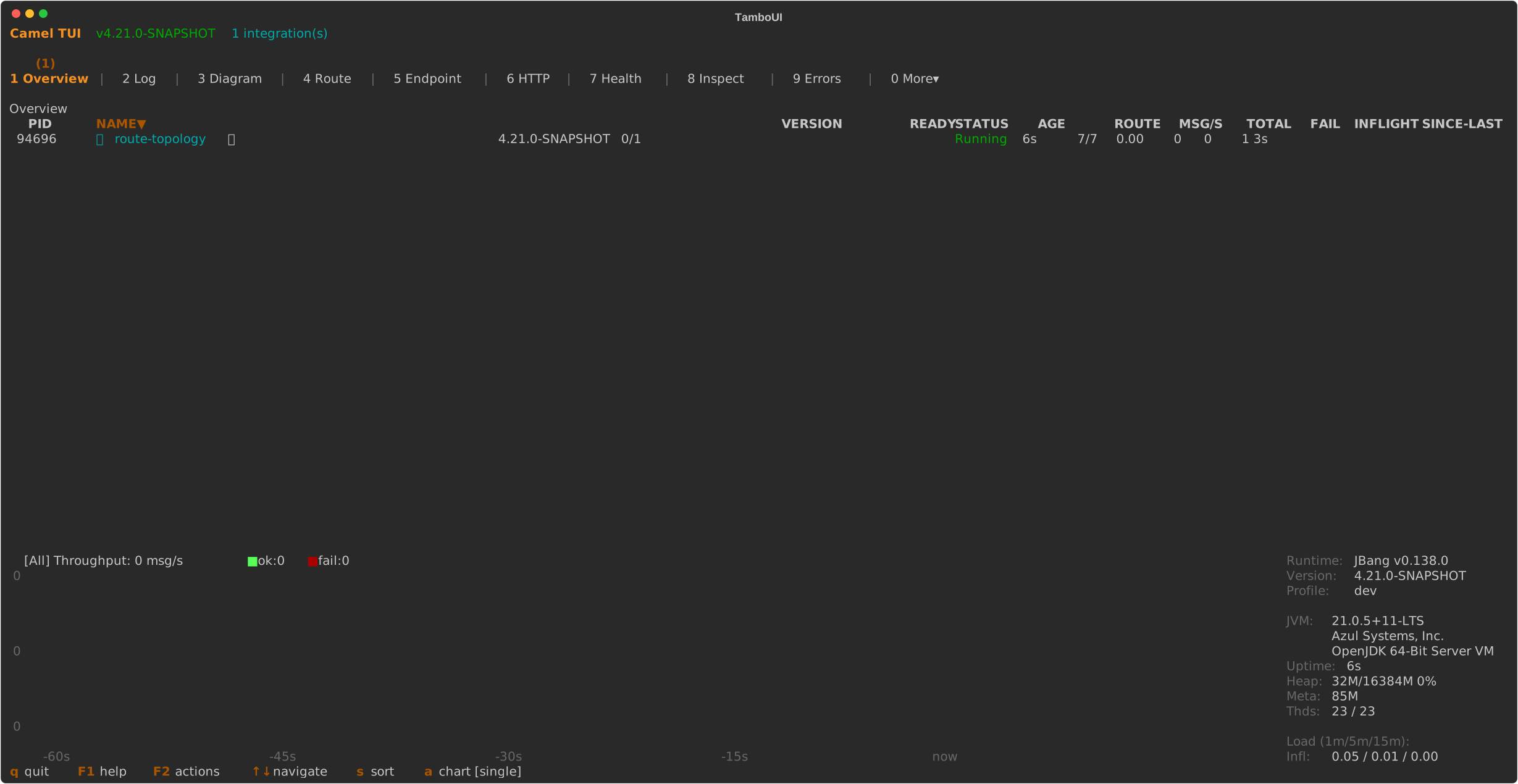
| This module is in Preview status. The TUI is designed for development and prototyping, not production monitoring. |
Getting Started
You can start using the TUI in two ways: with your own route, or by running one of the built-in examples.
Option 1: Your Own Route
Start a Camel integration in one terminal:
camel run my-route.yamlOpen the TUI in another terminal:
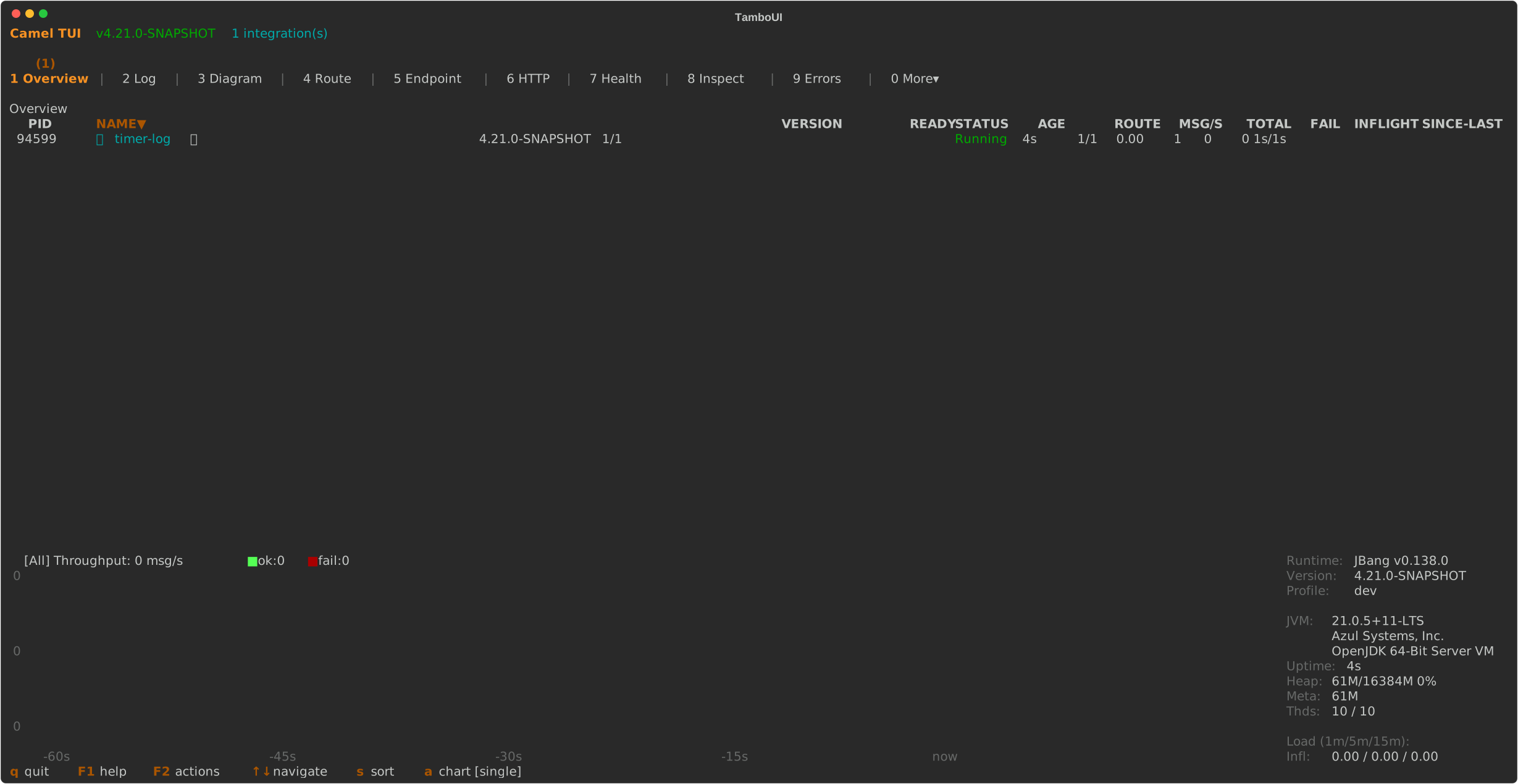
camel tuiThe TUI auto-discovers every running Camel integration on your machine — no configuration needed.
Option 2: Built-in Examples
Don’t have a route yet? The TUI ships with a catalog of ready-to-run examples. Open the TUI and press F2, then select Run an example:
camel tui-
Press F2 to open the actions menu
-
Select Run an example…
-
Browse the example catalog — type to filter by name
-
Press Enter to launch the selected example
The example starts running in the background. The TUI auto-selects it as soon as it appears. From there you can explore tabs, watch messages flow, inspect the route diagram, and experiment.
If an example requires infrastructure (like Kafka or a database), the TUI automatically starts the required Docker containers before launching the example. A notification in the footer shows the progress.
| Press F1 on any screen for context-sensitive help. Keyboard shortcuts are always shown in the footer bar. |
Tabs Overview
The TUI organizes information into tabs. Press number keys 1 through 0 to jump directly to any tab, or use Tab / Shift+Tab to cycle.
| Key | Tab | What It Shows |
|---|---|---|
1 | Overview | All running integrations and infrastructure services. Start here. |
2 | Log | Real-time application logs with search and filtering. |
3 | Diagram | Visual route topology with drill-down into individual routes. |
4 | Routes | Route list with message counts, throughput, and processing times. |
5 | Endpoints | All registered endpoints with usage statistics. |
6 | HTTP | HTTP endpoints with details. |
7 | Health | Health check status. |
8 | Inspect | Message history and tracing — step through exchanges processor by processor. |
9 | Errors | Failures with stack traces and exchange context. |
0 | More | Additional tabs: Beans, Browse, Circuit Breaker, Classpath, Configuration, Consumers, Inflight, Memory, Metrics, Startup, Threads. |
Tab badges show live counts — the Errors tab shows a red badge when errors exist, Health shows a badge when checks are DOWN, and Routes shows the route count.
Route Topology Diagram
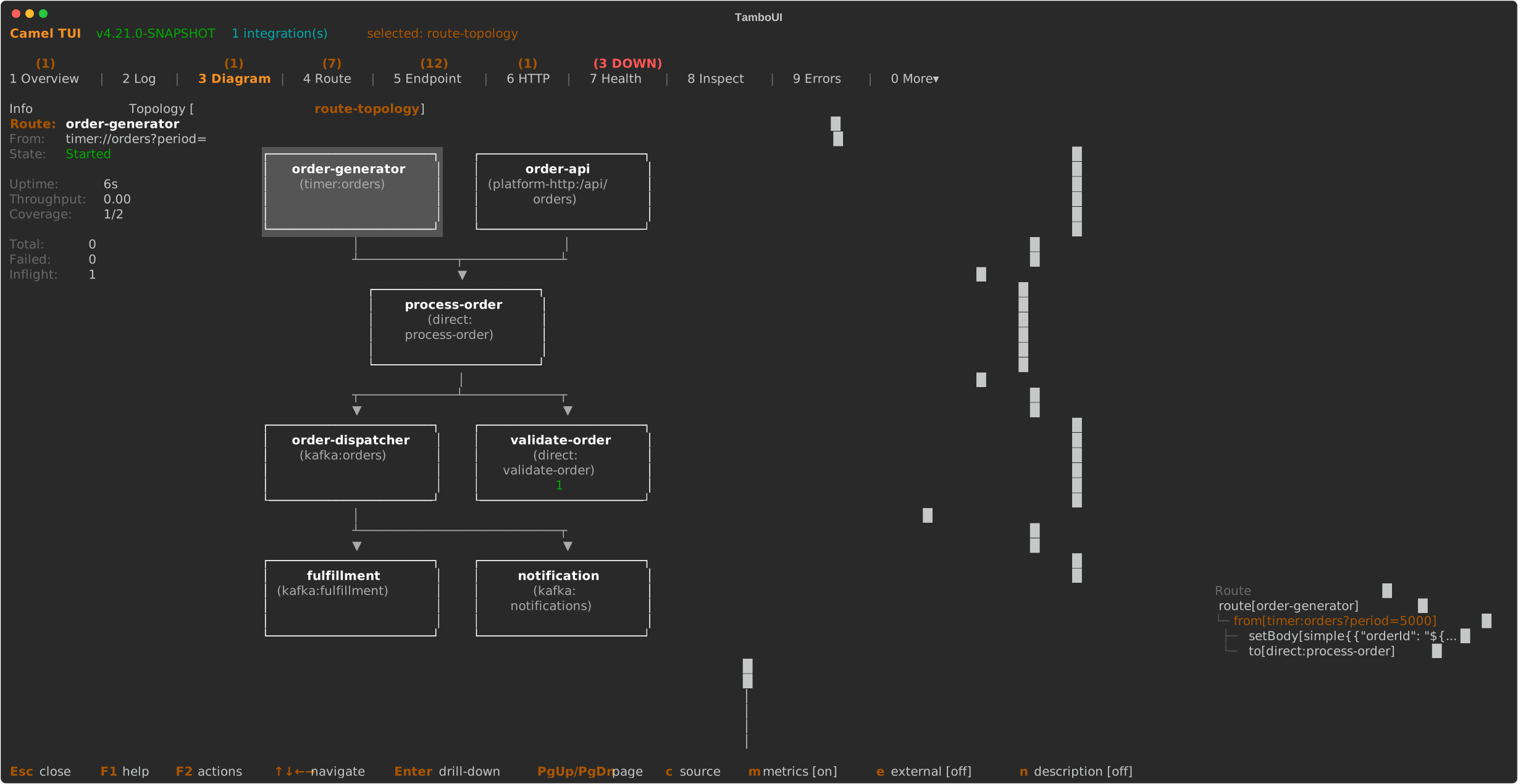
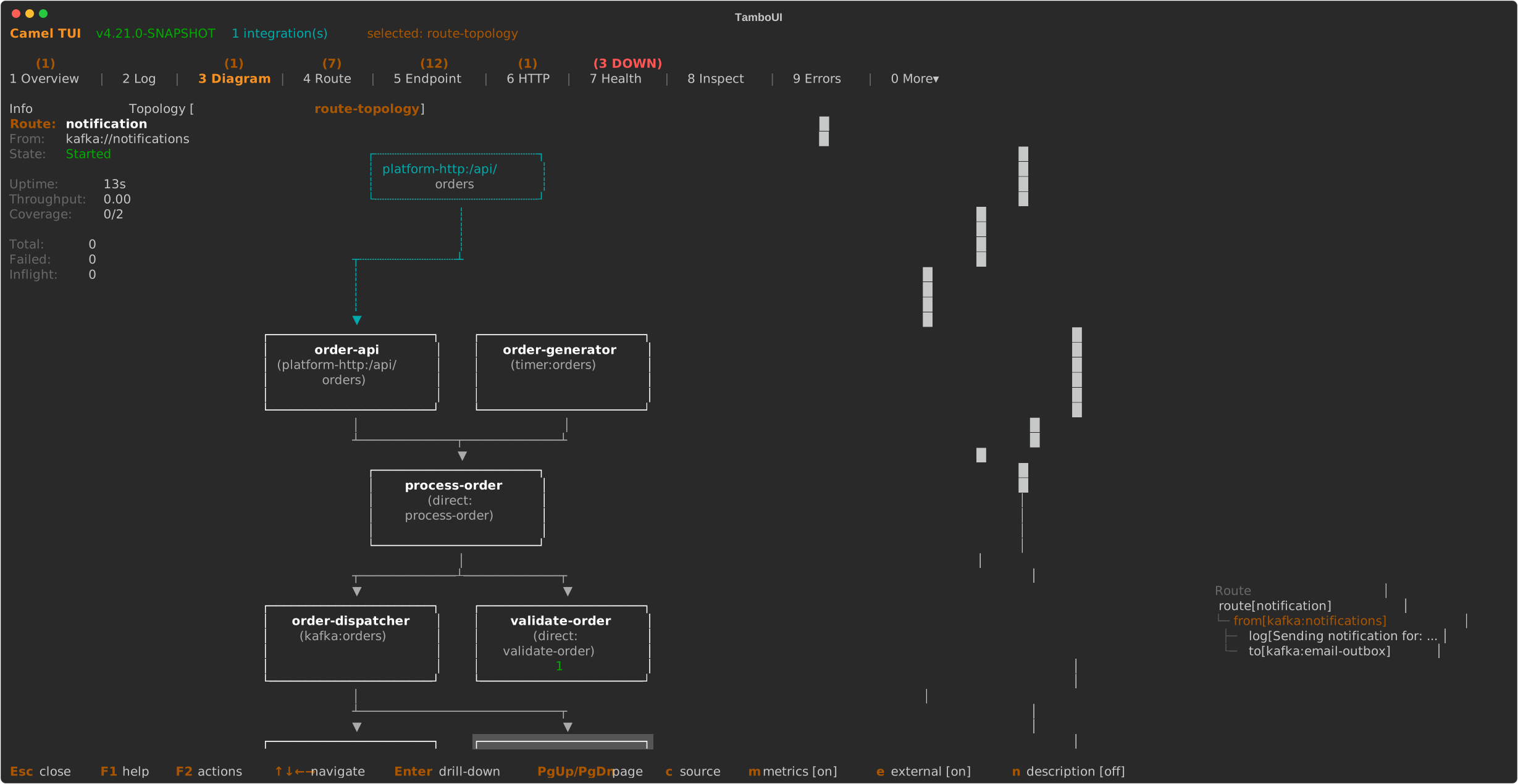
The Diagram tab (Tab 3) renders the route topology as interactive ASCII art. It shows how routes connect to each other through shared endpoints (direct, seda, kafka, etc.).
Topology View
The topology shows all routes as boxes, connected by arrows:
-
Trigger routes (timer, cron, etc.) appear at the top
-
Downstream routes appear below, connected by directed arrows
-
Route boxes show the route ID, the
fromendpoint, and metrics when enabled
Navigate between route boxes with arrow keys. When a route is selected, an Info panel appears on the left showing state, uptime, throughput, exchange counts, and processing times.
Drill-Down into Routes
Press Enter on a selected route to drill down into its internal EIP structure. Each processor and EIP node is displayed with its type (colored by category), endpoint URI, and per-node statistics.
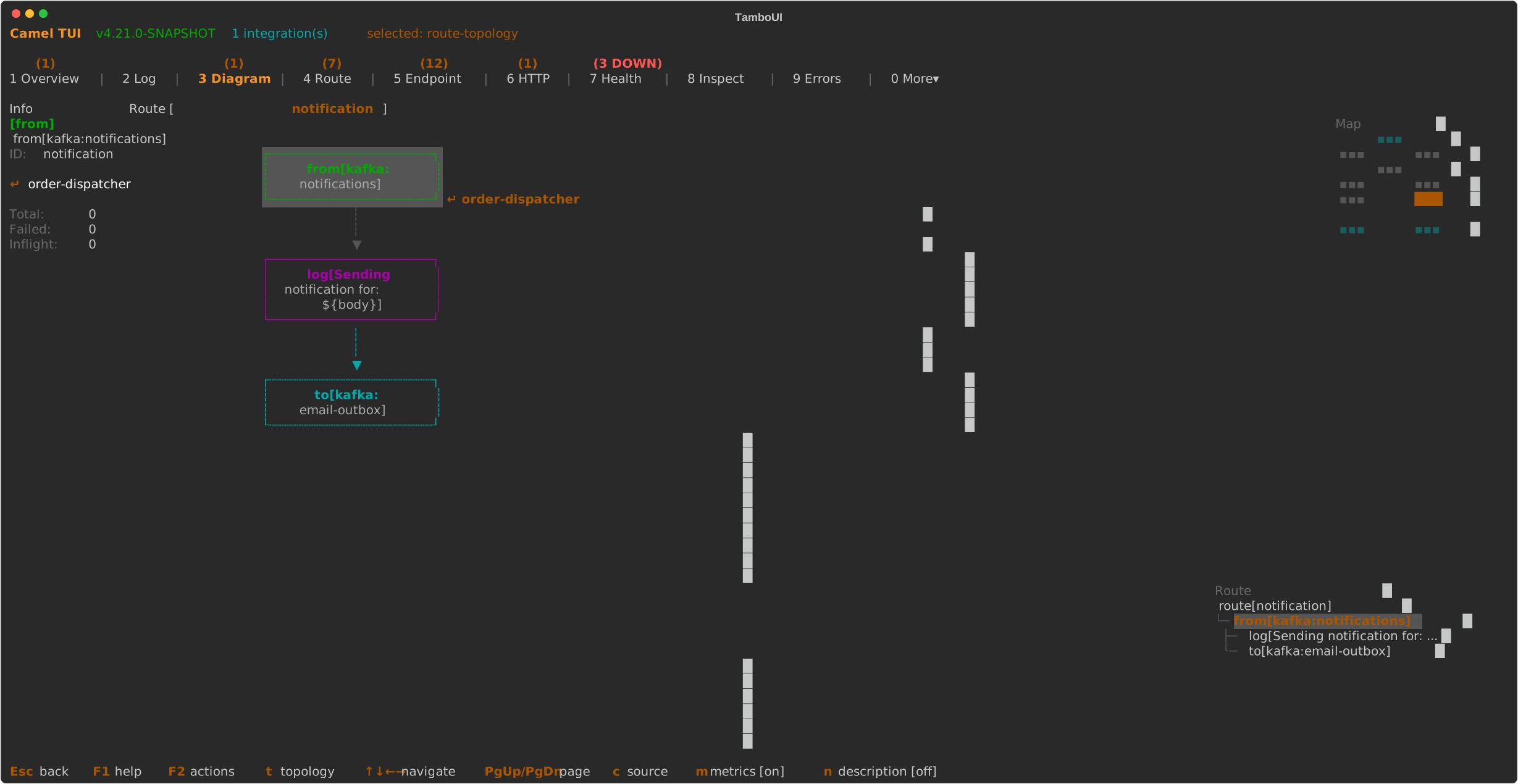
Nodes that connect to other routes show a Enter indicator — press Enter to jump directly to the linked route. Navigation history is maintained as a breadcrumb stack: press Esc to go back to the previous route, and eventually back to the topology view.
Press t to jump straight back to the topology from any depth.
Message Insight
The Inspect tab (Tab 8) lets you step through an exchange processor by processor — like scrubbing through a video timeline of your message’s journey. This is the key to understanding what Camel does with your data at every step.
History of Last Exchange
When you open the Inspect tab, it shows the last completed exchange. The top panel lists every processing step with:
-
Step number and direction (-→ or ←-)
-
Route and Node ID of the processor
-
BHPV change indicators — letters light up in yellow when Body, Headers, Properties, or Variables changed at that step
-
Elapsed time per step
Select a step with arrow keys, and the detail panel below shows the full exchange state: body content, headers, properties, and variables at that exact point in the processing chain.
Controlling What You See
Toggle sections of the detail view:
-
b — show/hide message body
-
h — show/hide headers
-
p — show/hide exchange properties
-
v — show/hide exchange variables
-
w — toggle word wrap
-
n — toggle description/processor labels
Waterfall View
Press g to switch to the waterfall view — a horizontal bar chart showing how long each processor took. This makes it easy to spot bottlenecks: long bars stand out immediately. The selected step is highlighted with >> and processing times are color-coded from green (fast) to red (slow).
Replay on the Diagram
Press d to overlay the message path on the route topology diagram. This is where the timeline replay comes alive:
-
The diagram highlights which route and processor handled the message at each step
-
Use Up/Down arrows to step forward and backward through the path
-
An Info panel on the left shows the exchange state (body, headers, properties, variables) at the current step — values that changed from the previous step are highlighted in yellow
-
Step through the entire exchange to watch how the message payload transforms as it flows through processors, filters, and content-based routers
-
Press Enter on a route node to drill down into its internal EIP structure while replaying
-
Press Esc to go back, t to return to the topology view
-
Press i to cycle the info panel size (narrow / wide / full)
This is especially powerful for understanding complex multi-route flows where messages are routed through direct, seda, or kafka endpoints between routes.
Live Tracing
When you run your integration with tracing enabled:
camel run my-route.yaml --traceThe Inspect tab gains a live trace panel showing every exchange as it flows through the system. Each exchange is listed with its timestamp, starting route, status (Processing/Done/Failed), elapsed time, and step count. Press Enter to drill into an exchange and see every processor step — the same step-by-step view and diagram replay work here too.
Use s to cycle sort order (time, route, elapsed, exchange) and S to reverse. Press F5 to clear captured traces.
Troubleshooting Errors
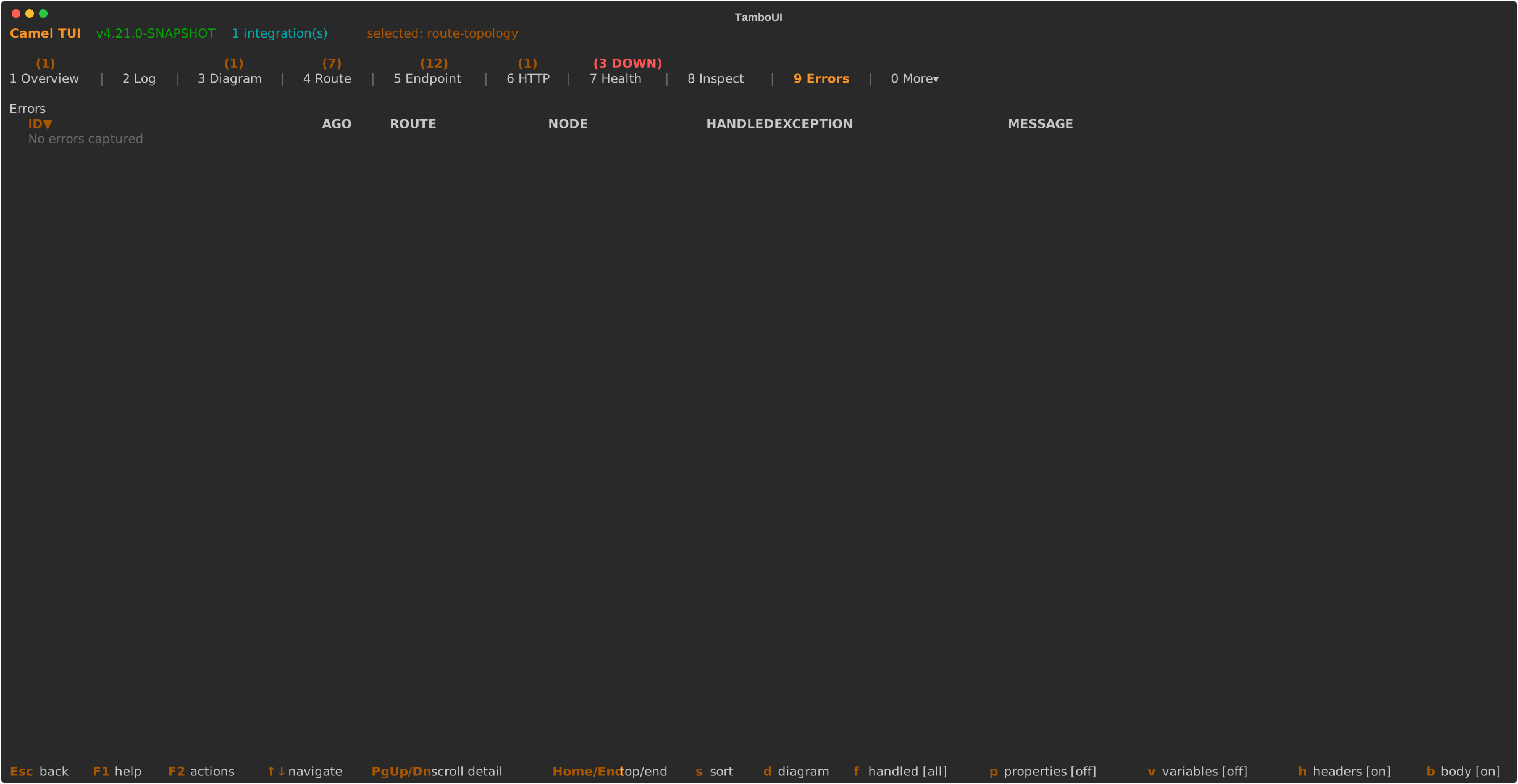
The Errors tab (Tab 9) collects failures with full stack traces and exchange context. When errors occur, a red badge appears on the tab.
For deeper troubleshooting, switch to the Inspect tab (Tab 8) and use the diagram replay (press d) to visualize exactly where the failure occurred:
-
Failed steps are highlighted in red on the diagram
-
Step through the failing exchange to see the message state at each processor leading up to the failure
-
The Info panel shows the exception message and which node threw it
-
Compare the message body and headers before and after the failing step to understand what triggered the error
This combination of error details + visual diagram replay gives you a complete picture of what went wrong and why — without leaving the terminal.
Actions Menu (F2)
Press F2 to open the actions menu with quick access to common operations:
| Action | Description |
|---|---|
Send Message | Send a test message to any route with custom body, headers, and exchange pattern. |
Run an example… | Browse and launch built-in Camel examples from the catalog. |
Run from folder… | Run routes from a local directory. |
Run Dev/Infra Service… | Start infrastructure services (Kafka, databases, etc.) in Docker. |
Browse Files… | Browse the integration’s source files with syntax highlighting. |
Run Doctor | Check your environment: Java version, JBang, Maven, Docker, port conflicts, disk space. |
Reset Stats | Reset all statistics and metrics for the selected integration. |
Stop All | Stop running integrations and/or infrastructure services. |
Take Screenshot | Export the current screen as SVG, text, or ANSI art. |
Start/Stop Tape Recording | Record your session as a |
Sending Test Messages
Select Send Message from the F2 menu (or press F2 then choose it):
-
Choose the route — use left/right arrows to pick the target route
-
Enter the body — type the message body, or use
file:path/to/fileto load from a file -
Add headers — press + to add headers as key=value pairs
-
Set exchange pattern — toggle between InOnly (fire-and-forget) and InOut (request/reply)
-
Press Enter to send
For InOut exchanges, the response is displayed below with status, elapsed time, response headers, and body. Press P to toggle pretty-printing for JSON/XML responses.
Keyboard Shortcuts
Global (All Tabs)
| Key | Action |
|---|---|
1 - 0 | Jump to tab by number |
Tab / Shift+Tab | Next / previous tab |
F1 | Context-sensitive help (toggle) |
F2 | Actions menu |
F3 | Switch between integrations (when multiple running) |
Shift+F5 | Take screenshot |
Ctrl+R | Start/stop tape recording |
Ctrl+C / Q | Quit |
Esc | Close popup / go back / return to Overview |
Diagram Tab
| Key | Action |
|---|---|
Arrow keys | Navigate between route boxes (topology) or EIP nodes (drill-down) |
Enter | Drill down into selected route / jump to linked route |
Esc | Go back (previous route or topology) |
t | Jump to topology view |
m | Toggle metrics overlay |
e | Cycle external endpoints (off / edges / all) |
n | Toggle description labels |
c | View route source code |
AI Integration (MCP)
The TUI includes an embedded MCP (Model Context Protocol) server that lets AI coding assistants interact with the dashboard.
The TUI is fully functional on its own — AI integration is entirely optional.
Why This Matters
When an AI agent connects to the TUI via MCP, it gains the same level of visibility that you have — and can act on it. The agent can:
-
Read everything — route topology, statistics, message traces, errors, logs, source files, health checks, and JVM metrics
-
Navigate and control — switch tabs, select routes, start/stop routes, send test messages, change log levels
-
Teach and present — the AI can control the TUI screen to walk you through concepts, highlight areas of interest, draw annotations, and take screenshots. It can circle a failing route, draw arrows between connected endpoints, and add explanatory text labels — turning the TUI into a live whiteboard for pair-programming
-
Self-troubleshoot — when something fails, the AI can autonomously inspect the error, read the message trace, correlate with route statistics, and produce a diagnostic report with annotated screenshots showing exactly where and why the failure occurred
Enabling MCP
camel tui --mcpThis starts an MCP server on localhost:8123 (configurable with --mcp-port). The server is bound to 127.0.0.1 only — it never listens on external interfaces.
When MCP is active, the TUI footer shows the connection status. Use F2 → MCP Info to see server details and MCP Log to view the tool call history.
Connecting an AI Agent
To connect Claude Code to the TUI, add the MCP server to your project configuration (.mcp.json in your project root):
{
  "mcpServers": {
    "camel-tui": {
      "type": "url",
      "url": "http://localhost:8123/mcp"
    }
  }
}
What AI Agents Can Do
The MCP server exposes tools organized by purpose:
-
Observe — read the screen, get structured state, query tables/logs/errors/traces/topology/diagram/files
-
Navigate — switch tabs, select integrations, select routes, send keystrokes, apply filters
-
Act — send test messages to endpoints, start/stop/restart routes, change log levels
-
Annotate — locate text and diagram nodes by coordinates, draw shapes (boxes, highlights, arrows, underlines, text labels), show captions with typewriter animation
-
Present — take screenshots, record tape sessions, control demo pacing
Example Workflows
-
"What routes are failing and why?" — The agent reads the errors tab, correlates with route statistics, steps through the failing exchange in the Inspect tab, and explains the root cause with annotated screenshots.
-
"Show me how this message flows through the system" — The agent navigates to the Inspect tab, opens the diagram replay, steps through each processor, and highlights the path on the topology while explaining what happens at each step.
-
"Highlight the bottleneck routes" — The agent reads the route statistics, locates the slowest routes on the diagram, draws red boxes around them, and adds labels with the processing times.
See Camel MCP Server for more about MCP and AI integration with Camel.
Recording Demos
The TUI can record terminal sessions for demos and documentation.
Live Recording
Press Ctrl+R (or use the F2 actions menu) to start recording your session as a .tape file. Press Ctrl+R again to stop. The tape captures your keystrokes with timing, producing a script that can be replayed or converted to an animated GIF.
Scripted Recording
Use the --record flag to replay a .tape file in headless mode and produce an Asciinema .cast recording:
camel tui --record=demo.tapeCommand Line Options
| Option | Description | Default |
|---|---|---|
| Name or PID of the Camel integration to monitor. When omitted, the TUI auto-discovers running integrations. | |
| Enable the embedded MCP server for AI agent access to the TUI. |
|
| Port for the embedded MCP server. |
|
| Screen refresh interval in milliseconds. |
|
| Replay a |